Open topic with navigation
Adding Invoices
Adding an invoice involves 2 main steps where you work with 1 wizard:
|
ü
|
Specify vendor/invoice information: Add Invoice Wizard. |
|
ü
|
Enter additional invoice details. |
Access Accounts Payable
|
1.
|
From the Main Menu screen, click INVOICE. The Browse Invoices screen appears with all open invoices displayed in a table. |
|
2.
|
Click  on the toolbar. The Add Invoice Wizard is initiated. on the toolbar. The Add Invoice Wizard is initiated. |
Specify Vendor/Invoice Info
|
3.
|
Enter the vendor # of the vendor you want to work with, or click  to browse for the vendor on the View Active Accounts Payable Vendors screen. Search for the vendor, highlight them in the table, and click to browse for the vendor on the View Active Accounts Payable Vendors screen. Search for the vendor, highlight them in the table, and click  . The wizard appears again with the selected vendor information displayed. . The wizard appears again with the selected vendor information displayed. |
|
4.
|
Enter an invoice # (this must be a unique number for that vendor), and check the checkbox to make the invoice tagged for payment during check processing. |
|
5.
|
Specify an invoice date (date invoice was created/defaults to today’s date), bank account (defaults to bank account already set up for the vendor/account from which invoice will be paid), and enter an invoice description (such as “utility allowance”). |
|
6.
|
If applicable, select a hold code and date. This is a code that places the invoice payment on hold, and the date on which the hold will be released. |
|
7.
|
Click START to continue. |
Caution! If selecting a hold code/date, this will withhold the invoice from check processing; however, once the hold date passes, you must manually release the hold to “free” the invoice for check processing.
Enter Additional Invoice Details
The editable fields in this section populate by default based on the term days and discount information, if any, entered for this vendor.
|
8.
|
Select the invoice’s due date (defaults to invoice date), and, if applicable, enter a discount % (percentage discount your agency will receive for payment by discount date), discount amt. (dollar value your agency will receive for payment by discount date), and discount date (date by which the invoice must be paid for the discount terms to apply). |
|
9.
|
In the invoice detail table at the bottom of the screen, type a purpose for the invoice and enter the invoice amount. |
|
10.
|
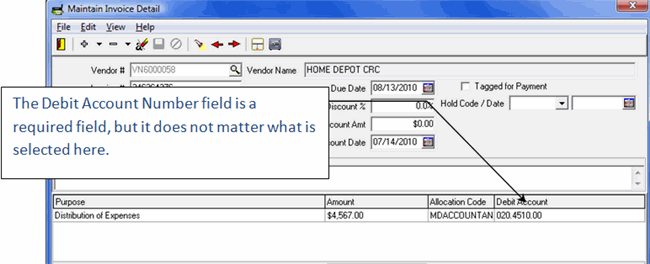
Select an allocation code or the debit account number that should be debited in General Ledger. |
Note: If a specific default debit account has been set for the chosen vendor, it will already be selected and display here. You can assign a specific debit account to a vendor on the Maintain Vendor screen. See "Adding Vendors"
|
11.
|
Click  to save the invoice detail line. (Use to save the invoice detail line. (Use  to cancel changes.) to cancel changes.) |
- To add a new detail line to the table, click .
- To edit an existing detail line, select the detail line you want work with and click
 .
.
- Use
 or
or  to move a line detail either up, or down.
Review and Confirm
|
12.
|
Review and confirm the invoice information you have set up and click FINISH. The Browse Invoices screen appears again with the new invoice listed in the table. You have successfully added a new invoice! |
Hint: To easily add multiple invoices, check the Repeat Wizard checkbox to re-start the Add Invoice Wizard immediately after clicking FINISH and completing an invoice.
Copyright © Tenmast Software 2010
 Example: Allocation in invoice